
We use cookies on this site to enhance your experience.
By selecting “Accept” and continuing to use this website, you consent to the use of cookies.
The MyLearningSpace home page is the first page you will see after you log in. Learn more about the components of the page.
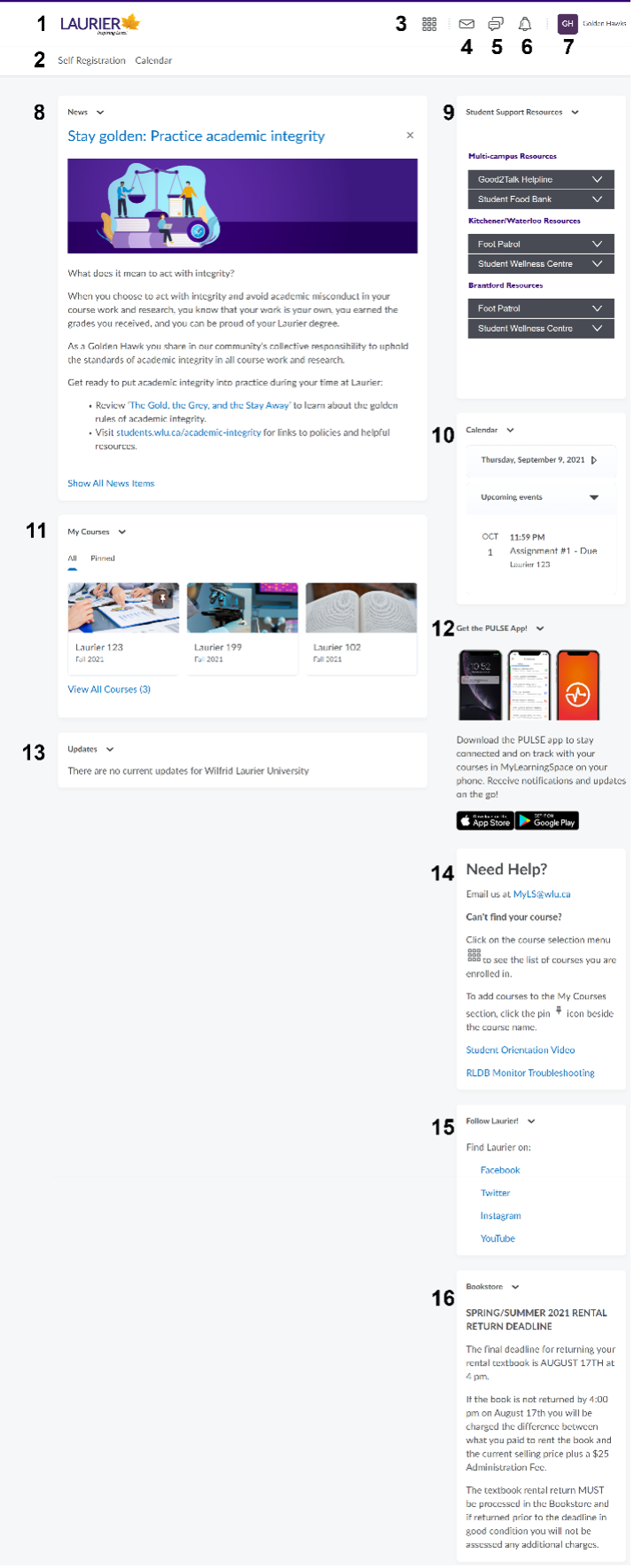
1. Laurier logo: Click the logo to return to the MyLearningSpace homepage.
2. Navigation bar: Includes links to Self Registration and the system Calendar.
3. Course selection menu: Lists all courses you are enrolled in. Includes the option to pin courses to the My Courses widget on the homepage.
4. Message alerts: The email tool allows you to send email from within MyLearningSpace. You can also organize received mail using folders and store email addresses using the Address Book.
5. Subscription alerts: Receive notifications once subscribed to a Discussion a Forum, Topic, or Thread.
6. Update alerts: Receive notifications when new news, grades, feedback, due dates, quiz dates, etc. are released.
7. Profile, Notifications, Account Settings, Log Out: Update your profile, change your notification and account settings, and log out of MyLearningSpace.
8. News: System and university wide updates are posted in this component.
9. Student Support Resources: Support resources for students.
10. Calendar: Lists important dates.
11. My Courses: Includes a list of all courses you are enrolled in. When you pin your course, it will appear in this component.
12. Pulse App: Link to download the D2L Pulse app.
13. Updates: Displays the number of new items like discussion posts, available quizzes and email from all courses.
14. Help: Links and documents to help you with the tool.
15. Social Media: Links to Laurier’s social media accounts.
16. Bookstore: Important dates from the Bookstore.
The self-registration tool allows you to enrol in courses offered by various groups at Laurier.
To access the list of available self-registration courses, click on 'Self Registration' at the top of the MyLS Homepage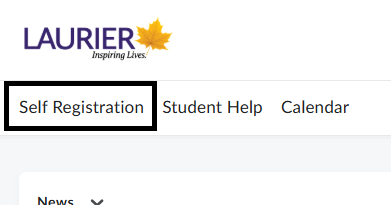
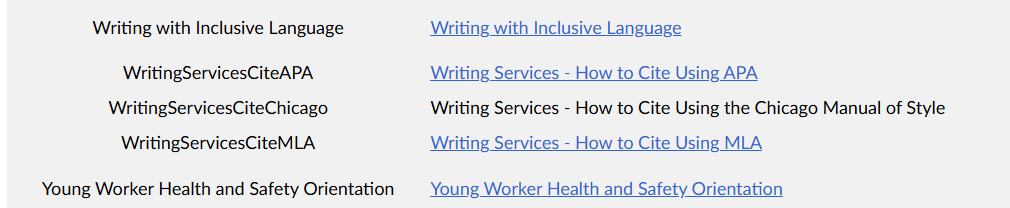
Scroll through the list of courses to locate the one you want. Courses are listed in alphabetical order. Once located, click on the link to register. (Note: if the course title is not a clickable link, you are already registered in this course):
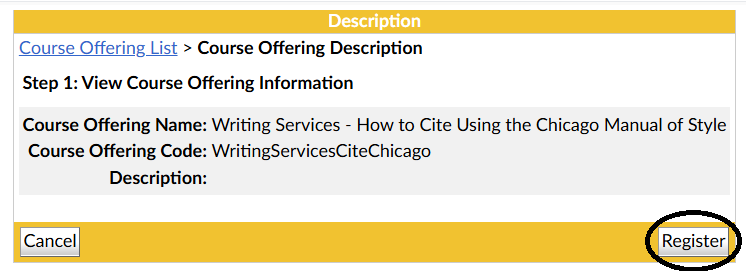
Step 1: Review the course offering information, to ensure you've selected the correct course, then click on 'Register'.
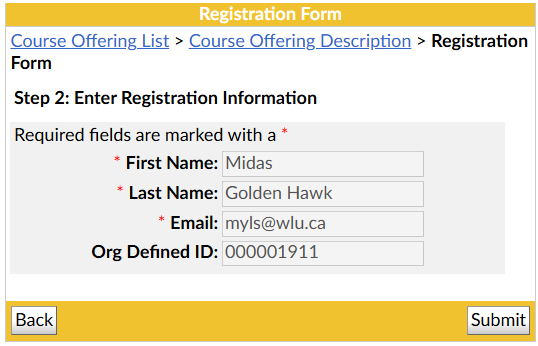
Step 2: On the Registration Form, MyLS will automatically populate fields like name, email and student number. Respond to any other fields. Once complete, click on 'Submit'.
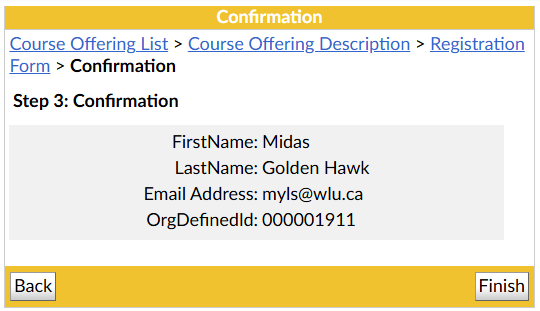
Step 3: Review and confirm the registration information, and click on 'Finish' to complete you registration.
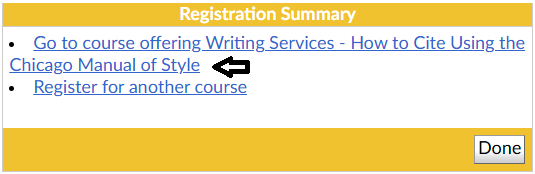
You'll be able to access most self-registration courses immediately, unless they require an approver to grant you access. In that case, you will receive an email when access has been granted.
Courses for students include: